Server Configuration – Server Options
The Server Options section of the Server Configuration Portal provides you with the ability to modify and set server-wide settings that will affect all client instances that connect to the server.
In order to access the Server Configuration Portal, you must either have Local administrator privileges on the machine that the Server component is installed on or be linked to a user profile that has the privilege to access security assigned from within the Server Configuration – Users window.
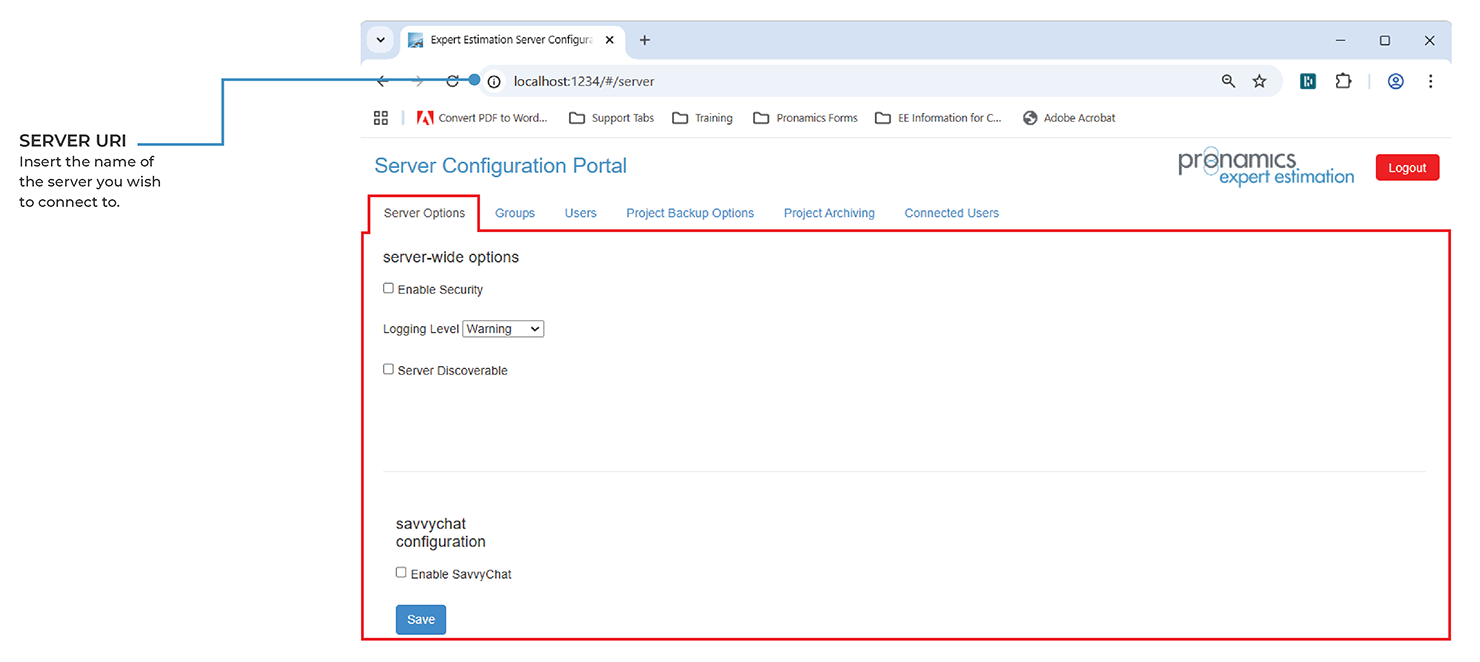
Server Configuration – Server Options tab
SERVER-WIDE OPTIONS
|
NAME |
DESCRIPTION |
|---|---|
|
API Status |
The API Status displays whether or not the API is currently enabled for the connected server. Note: This field is read-only. |
|
Enable Security |
Enabling security will enforce all instances of the Client application to authenticate with the Server component prior to connecting. Once enabled, restrictions will immediately be placed on any client instance connected to the Server component. Enabling this for the first time will prevent users from accessing Expert Estimation until the appropriate Users, Groups and Privileges have been assigned. Note: Security cannot be enabled or disabled when there are connected instances to the server. |
|
Logging Level |
This drop-down box provides the ability to alter the level of detail in Expert Estimation’s server-side diagnostic logging. Note: This is for diagnostic purposes only. Pronamics Support may request this to be changed in order to provide more information about program operation. |
|
Server Discoverable |
Enabling server discoverability allows for the server to be detected in the Server Selection window when clicking the Search button. When enabled, an optional Server Name and the Server Discoverable Port (UDP) port can be configured for access and identification within the Server Selection window. |
|
Enable Chat |
Enabling Chat will allow for all users to access the SavvyChat component of the Connected Users list located in the bottom-right hand corner of the applications taskbar. The SavvyChat component will not be accessible while this option is unchecked. |
|
Enable Offline Messaging |
The Enabling Offline Messaging option is only available while the Enable Chat checkbox is selected. This feature will display an additional section allowing you to enter SMTP settings for a relevant mail server to send an email to users that receive a message within Expert Estimation while they are offline. Note: Users will only be notified via an email after this option has been configured and when they have enabled receiving offline message notifications from within the Options - User Details. |