Server Configuration – Users
With a number of different people accessing information stored on the server, it becomes imperative that the number of users accessing the data is monitored. The Users section of the Server Configuration Portal allows you to categorise individual users under a User Profile. These user profiles are used in conjunction with User Groups in order to determine the level of access to various projects and functionality each person has.

Server Configuration – Users tab
User Profiles are created by:
- Clicking the Users tab from the top menu in the Server Configuration Portal.
- Clicking the Add User button on the left-hand side of the screen.
- Entering the name of the user then clicking Add User.
Note: Usernames are strictly for defining a user in order to manage individual access to Expert Estimation. They do not have to satisfy any special formatting relating to network user accounts (such as Fully Qualified Domain Name).
Once a User Profile has been created you can modify the properties of the profile. These properties include:
- The User Groups the profile is allocated to.
- A user’s access to viewing and managing the Server Configuration Portal.
AUTHENTICATING USERS
When a user accesses Expert Estimation on a server that has Security enabled, they will be prompted to log in to the application.
This login window will allow users to authenticate against a known Expert Estimation User Profile. User profiles are associated with either a user's Windows account, Active Directory account or by using Microsoft Entra ID.
Refer to the Server Configuration article on authentication when accessing the Server Configuration Portal.
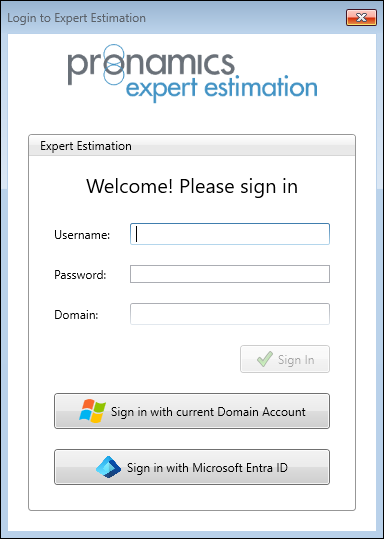
Expert Estimation - Application Login window
DETAILS
These detail fields are for another user who is not logged into the current machine. They can enter their credentials and the Domain name to login.
SIGN IN WITH CURRENT DOMAIN ACCOUNT
This is the default option that users will need to access Expert Estimation. This will use the current user's Windows account details to login.
SIGN IN WITH MICROSOFT ENTRA ID
This option will launch the Microsoft Entra ID login window to login.
If it is the first time logging into the server in Expert Estimation, you will be prompted to enter the Invitation code generated for their user profile.
The Invitation code is generated by clicking onto a User Profile and clicking the Create New Invitation button. Entering the code generated will authenticate the login details that have been entered against the user profile that generated the Invitation code.