Cash Flow Scenario Options - Escalation
Genesis edition only.
The Escalation section of the Cash Flow Scenario Options window provides configuration options used in calculating escalation values for a project when the respective Cash Flow Scenario is considered the Active Cash Flow Scenario.
To change the information in this section, click the Edit ( ) button in the Cash Flow Scenario Options ribbon toolbar.
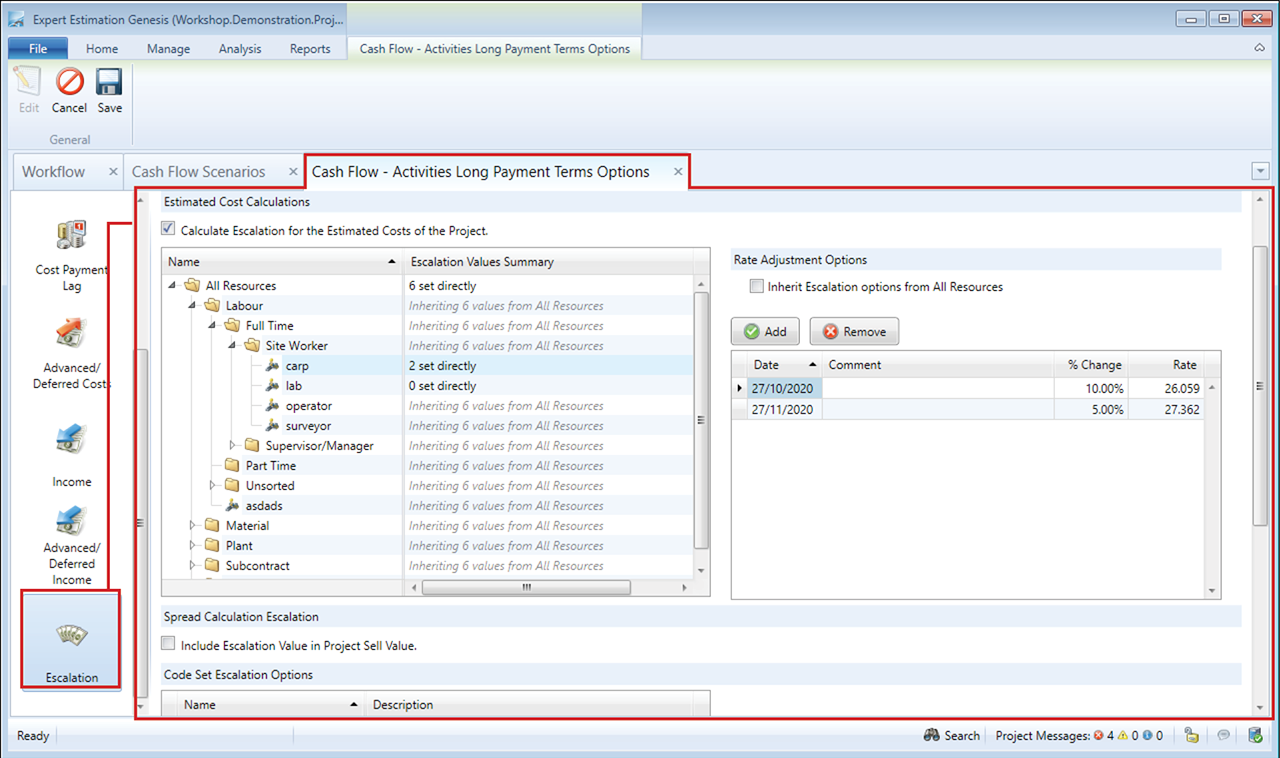
Cash Flow Scenario Options window – Escalation
ESTIMATED COST CALCULATIONS
|
FIELD |
DESCRIPTION |
|---|---|
|
Calculate Escalation for the Estimated Costs of the Project |
When this checkbox is selected, escalation will be calculated against all Estimated Costs in a project. Checking this box will introduce a large range of columns throughout various results windows along with additional detail displayed in the Project Summary, helping to identify the regular costs and the amounts determined through escalation calculations. Enabling this window will also give you access to the Escalation Schedule Item Analysis window found under the Analysis ribbon menu. |
|
Resource Escalation Settings |
This section allows you to set a percentage increase (or decrease) to the values of a Resource Type as a whole or individual resources on the dates entered or inherit the values from the nearest configured Resource Type/Category folder. Once a Resource or Resource Type is selected from the drop-down, you can add in an Escalation Date by clicking the Add Button. This will add a line to the Escalation Dates grid for the selected Resource Type. This will only be available if the Resource or Resource Type is not inheriting values from the parent Resource Category folder. |
RATE ADJUSTMENT OPTIONS
|
FIELD |
DESCRIPTION |
|---|---|
|
Inherit Escalation options |
This checkbox provides you with the ability to set whether the selected Resource Type/Category folder or selected Resource inherits escalation properties from the All Resources folder. Once a Resource or Resource Type is selected from the Resource Escalation window you can add in an Escalation Date by clicking the Add Button. This will add a line to the Escalation Dates grid for the selected Resource Type. This will only be available if the Resource or Resource Type does not inherit values from the parent Resource Category folder. A comment can be added for the Escalation value, outlining what the value is for. |
SPREAD CALCULATION ESCALATION
|
FIELD |
DESCRIPTION |
|---|---|
|
Include Escalation Value in Project Sell Value |
This checkbox provides you with the ability to include or exclude the escalation values from your project for the current scenario in the Project Sell Total. This option is only available if you have the Calculate Escalation for the Estimated Costs of the Project option enabled. Note: While this option is not enabled, the Project total will not be including Escalation Values. |
CODE SET ESCALATION CALCULATIONS
The Code Set Escalation section allows you to specify how the Code Set calculation will handle your Escalation Value based on which options you have configured for the current scenario.
Within the grid area, you will see the Name and Description of the Code Sets in your project. Upon selecting one of these Code Sets you can specify where the Escalated Value will be displayed within the Code Set.
|
OPTION |
DESCRIPTION |
|---|---|
|
Not be included |
When this option is set, the Escalation Values will not be considered or displayed in the Code Set – Codes window and any columns regarding escalation will not be displayed in the Code Set - Codes window. |
|
Included based on configured allocations |
This option will ensure that all escalation values generated from a particular item / resource is assigned to the code that the item / resource is allocated to within the Code Set. |
|
Assigned to a specific code |
This option will allow you to assign all escalation value on a specific code within the Code Set. This will default to the Misallocation Code. |